Put an asset register
on the map.
Prepare tabular records, check coordinates and inspect a spatial result before making it available to a team.
Follow the sampleSpatial data workflows
Connect files, business records and spatial data. Prepare, validate and publish useful results through visual workflows, with a lightweight spatial engine underneath.
A five-step sample tour. No account required.
From source to useful result.
Built around the work
Start with a job to do. Bring the records into focus, make the preparation visible, and inspect what comes out.
Prepare tabular records, check coordinates and inspect a spatial result before making it available to a team.
Follow the sampleExplore geometry alongside attributes. Use declared time and elevation where your layer needs them.
See data inspectionWork with SQL and spatial interfaces on a SQLite-based engine. Use the browser to inspect the data behind your application.
Explore the engineAn open look at the process
Follow six illustrative asset records from a file to a reviewed result. One missing coordinate shows why validation belongs in the flow.
Interactive walkthrough · sample content · no job is executed
01 / Know your source
This example starts with a CSV asset register: an ID, a name and two coordinate fields. Look at the sample before deciding how to use it.
Download the six-row sampleFictional assets near Melbourne. All six rows are shown.
| Asset | Name | Longitude | Latitude |
|---|---|---|---|
| A-01 | North pump | 144.961 | -37.810 |
| A-02 | Garden valve | 144.968 | -37.808 |
| A-03 | East sensor | 144.974 | -37.813 |
| A-04 | River gauge | 144.969 | -37.820 |
| A-05 | West meter | 144.961 | -37.817 |
| A-06 | Depot pump | 144.965 | Missing |
Source sample · original values retained
02 / Make meaning explicit
Keep the asset ID and name. Interpret longitude as X and latitude as Y, using WGS 84 coordinates. A missing value remains an issue to review.
These are the example’s preparation settings.
Coordinates need the right meaning, not just the right type.
03 / Inspect the exceptions
A-06 has no latitude. It cannot become a valid point. In this example, the reviewed result includes five records and keeps the exception visible.
Reviewing an issue does not repair the source.
Correct it in the source or exclude this record from the spatial result. It is not silently placed at zero.
Expected sample output: 5 points + 1 exception
04 / Review before making changes
Check the destination, included records and access before writing a result. In the workspace, publishing a supported workflow result creates a table.
Nothing in this tour is saved or published to a database.
Saving a table and enabling public access are separate decisions.
05 / Keep the preparation
Use the workspace to build a workflow and inspect its results. Check the save and run options available in the builder you are using.
Open workflowsThe guided workflow supports portable workflow files. Unattended scheduling depends on the runtime; this tour does not demonstrate it.
Step 1 of 5 · Connect
Inside the product
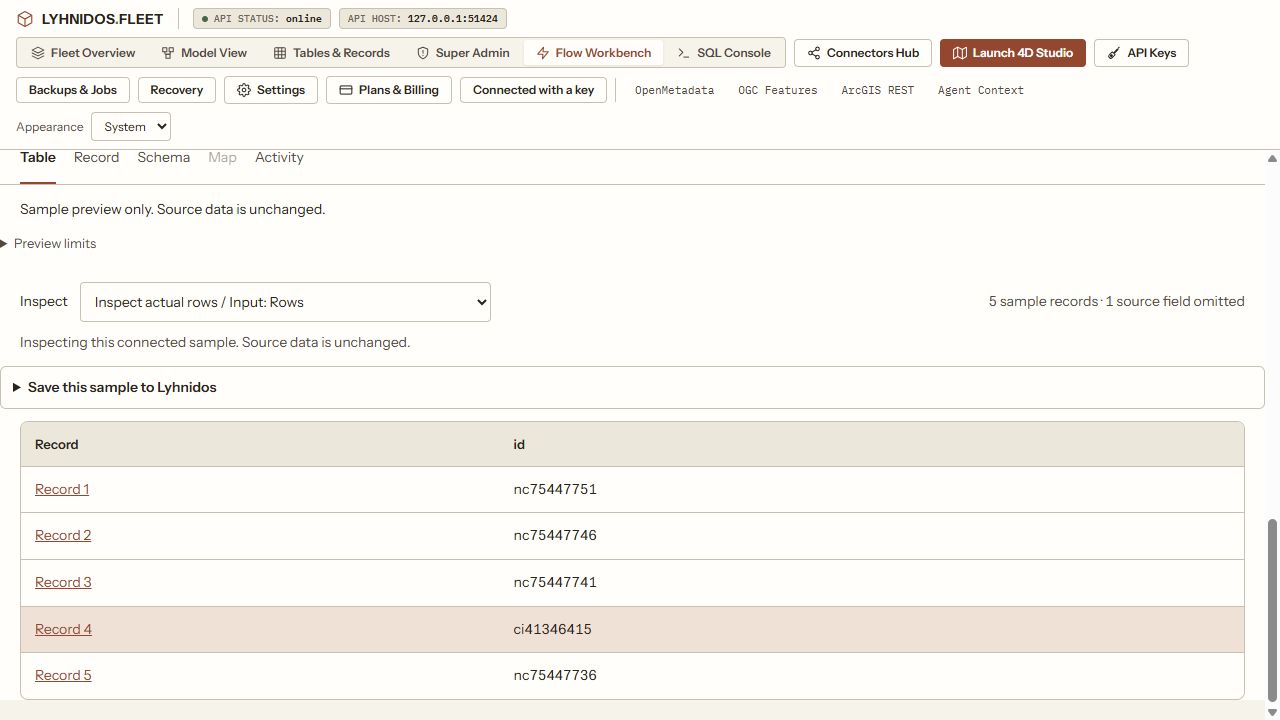
Inspect records, schema and spatial data. Keep sample limits visible so the preview tells you what it actually represents.
Know which way the data flows
Importing a file, reading a workflow source and connecting a GIS client are different jobs. Start with the path your data needs.
IN / TABULAR DATA
IN / SPATIAL DATA
OUT / CLIENTS & APPLICATIONS
Capabilities vary by source, workflow step and deployment. The tour demonstrates one preparation pattern; it does not imply complete FME format or transformer compatibility.
Lightweight foundation. Spatial depth.
A SQLite-based spatial engine brings geometry and records together. Start in the browser, then use SQL and spatial interfaces when your application needs them.
Open SQL workspaceWork with geometry and ordinary attributes in the same database. Inspect schema and layer metadata alongside your data.
Use declared elevation models and time fields for layers that need them. Capabilities depend on the geometry and interface you use.
A sample preview is not a full dataset run. Check source size, processing support and plan limits before moving a large workload.
Review plans and limitsThe workspace around your data
Bring preparation and inspection into the same platform as database management. Review the scope of an action before you commit it.
Inspect previews and publication destinations. Creating a result table is a deliberate step.
Use account sign-in, workspace roles and scoped API keys. Review database publication before enabling public access.
Compare database, storage and query allowances. Check the current pricing page for the limits that apply.
Compare plansStart with a useful result